
Accept COD and manual bank transfer
With the COD & Manual Transfer add-on, your payment forms can offer Cash on Delivery (COD) and Manual Bank Transfer next to online payments. These orders stay pending until you confirm the money has arrived.
Before you start
Section titled “Before you start”Subscribe to the COD & Manual Transfer add-on, or start its free trial, from Add-ons > Available Add-ons. The Package Niaga and Package Niaga Pro bundles include it too.
Add your bank accounts
Section titled “Add your bank accounts”Manual transfer needs at least one bank account for customers to pay into. COD does not. To add them:
- Go to Platform Setup > Payment and open the Bank Accounts tab.
- Choose the Bank, then fill in Account Number and Account Name. Click Add Bank Account to add up to 3 accounts.
- Click Save Bank Accounts.
Turn it on in your form
Section titled “Turn it on in your form”Each form chooses its own payment methods:
- Open your form and go to the Payment Details tab.
- In Payment Option, add Cash on Delivery (COD), Manual Bank Transfer or both.
- Save your changes.
Customers who choose manual transfer pick the bank account they paid into and upload their receipt before they can submit.
Add a COD charge (optional)
Section titled “Add a COD charge (optional)”To charge extra only on COD orders, use a shipping option:
- Go to Platform Setup > Shipping & Rates and click Add Shipping Option.
- Enter a Shipping Name, such as COD, and a Fixed Charge (RM).
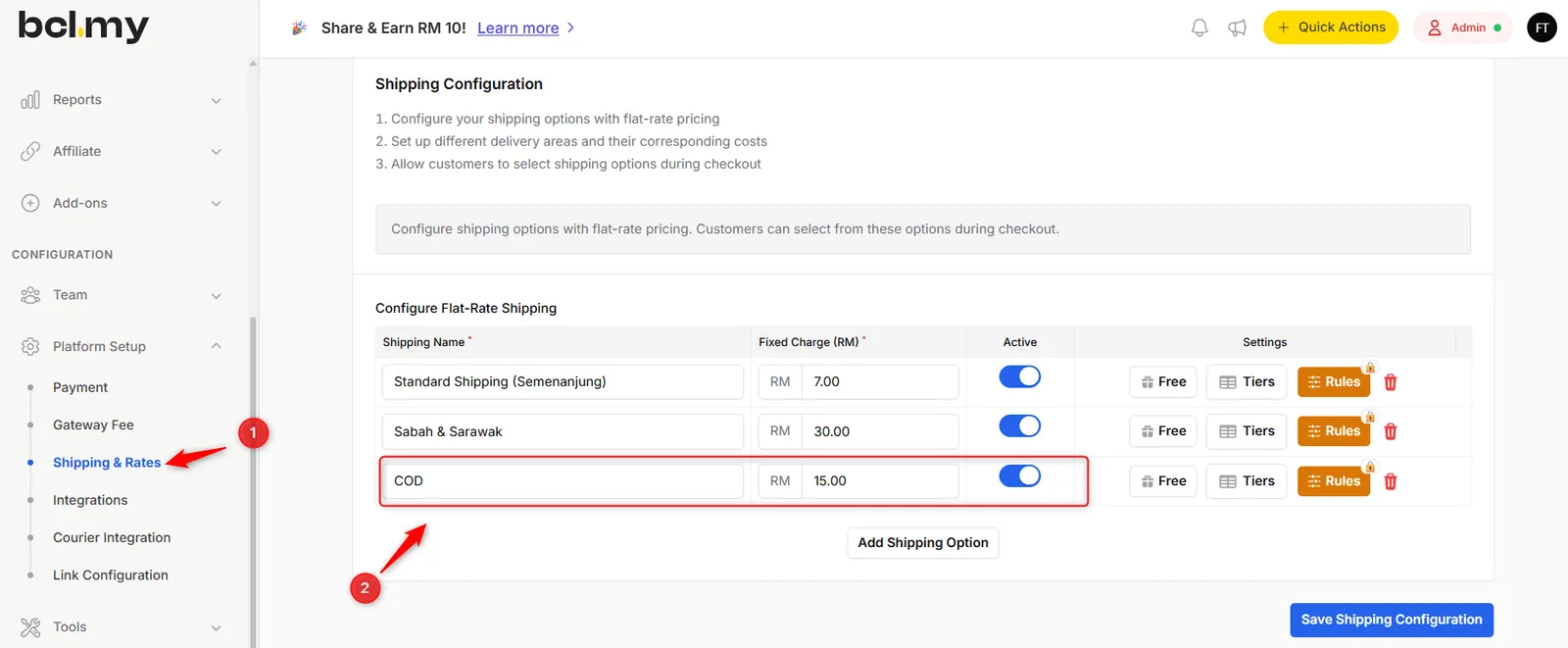
- Click Rules on that row, choose Cash on Delivery (COD) in Payment Channels, and save.
- Click Save Shipping Configuration.
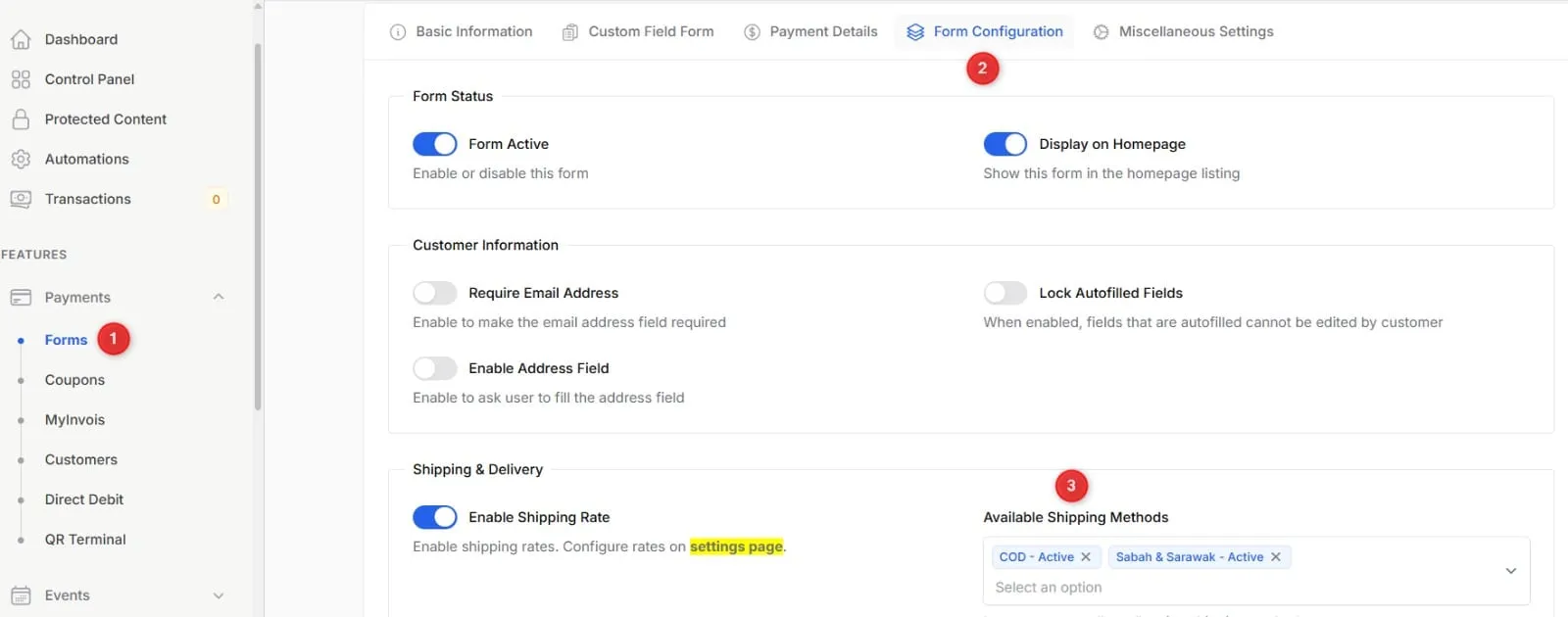
- In your form’s Form Configuration tab, turn on Enable Shipping Rate and add the option to Available Shipping Methods.
Approve a paid order
Section titled “Approve a paid order”Once you receive the cash or see the transfer in your bank:
- Go to Transactions and find the order.
- Open its actions and click Update Status. For manual transfers, you can view the customer’s receipt here.
- Under Mark as Successful, click Approve. BCL emails the customer a success notice.
To approve many orders at once, tick them, open Bulk actions and choose Mark As Successful. Only COD and manual transfer orders change.
Common issues
Can I charge a fixed RM10 only for COD orders?
Yes. In Platform Setup > Shipping & Rates, add a shipping option named COD with a Fixed Charge (RM) of 10. Click Rules on that row and choose Cash on Delivery (COD) in Payment Channels. Do not use the additional fee, which is a percentage and applies to every payment method.
Can I hide COD for customers in Sabah and Sarawak?
Yes. On Shipping & Rates, click Add Channel Restriction, choose COD as the payment channel, set Mode to Hide In and select Sabah and Sarawak.
Why is a COD order still pending after the customer paid?
BCL cannot see cash or bank transfers. Open the order in Transactions, click Update Status and approve it under Mark as Successful.
Was this article helpful?
Thanks for your feedback.
Sorry this didn't help. WhatsApp us and we'll sort it out with you.