
Create a payment link
A payment link is a one-off link for a set amount, made for one customer. Use it when you sell through WhatsApp, Facebook or other chats and do not need a full payment form.
Before you start
Section titled “Before you start”You need a connected Bayarcash account. Until BCL has your token and secret key, the Payment Link form is locked. See Connect your Bayarcash account.
Create the link
Section titled “Create the link”Create the link from any page in the dashboard:
- Click Quick Actions at the top right of the dashboard.
- Under Collect payment, click Payment Link.
- Fill in Buyer Name, Amount (RM), Buyer Email and Buyer Mobile Number. All four are required.
- In Portal Key, choose the Bayarcash portal that receives the payment. See Choose a Bayarcash portal key.
- Leave Let user choose payment method on to let your customer pick a channel, or turn it off and choose one in Payment Option.
- Optionally, add a note in Remark Order.
- Click Submit.
Share the link
Section titled “Share the link”When the link is ready, the Share Payment Link window opens:
- Click the blue copy button at the end of the link.
- Paste the link into your chat with the customer, or click Twitter, Facebook or WhatsApp to share it directly.
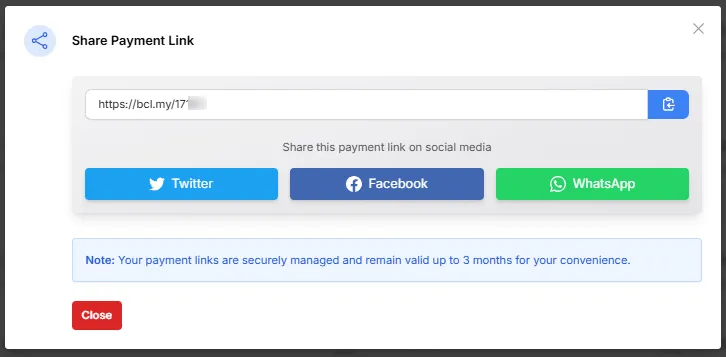
The link stays valid for up to 3 months. When your customer pays, the payment shows in Transactions.
Common issues
Why can't I fill in the Payment Link form?
The form stays locked until BCL has your Bayarcash token and secret key. Connect your Bayarcash account first, then open Quick Actions > Payment Link again.
How long does a payment link stay valid?
A payment link stays valid for up to 3 months after you create it.
Can I choose the payment method for my customer?
Yes. Turn off Let user choose payment method and pick one in Payment Option. Leave it on to let your customer choose from the channels your portal supports.
Was this article helpful?
Thanks for your feedback.
Sorry this didn't help. WhatsApp us and we'll sort it out with you.