
Add Bayarcash as your MyInvois intermediary
To send e-invoices through BCL, LHDN must know that Bayarcash may submit documents on your behalf. You give that permission once, in the MyInvois Portal, by adding Bayarcash as an intermediary. Then you check the connection in BCL.
Before you start
Section titled “Before you start”You need the LHDN E-Invoice add-on in Add-ons > Available Add-ons, and your company details, including Tax Identification Number (TIN), filled in under Team > Company Profile. See Add your company details.
Add Bayarcash in the MyInvois Portal
Section titled “Add Bayarcash in the MyInvois Portal”These steps happen on LHDN’s site, not in BCL:
- Log in to MyTax and click MyInvois in the top menu.
- Click the profile icon at the top right and choose View Taxpayer Profile. If a different company is shown, click Switch Taxpayer first.
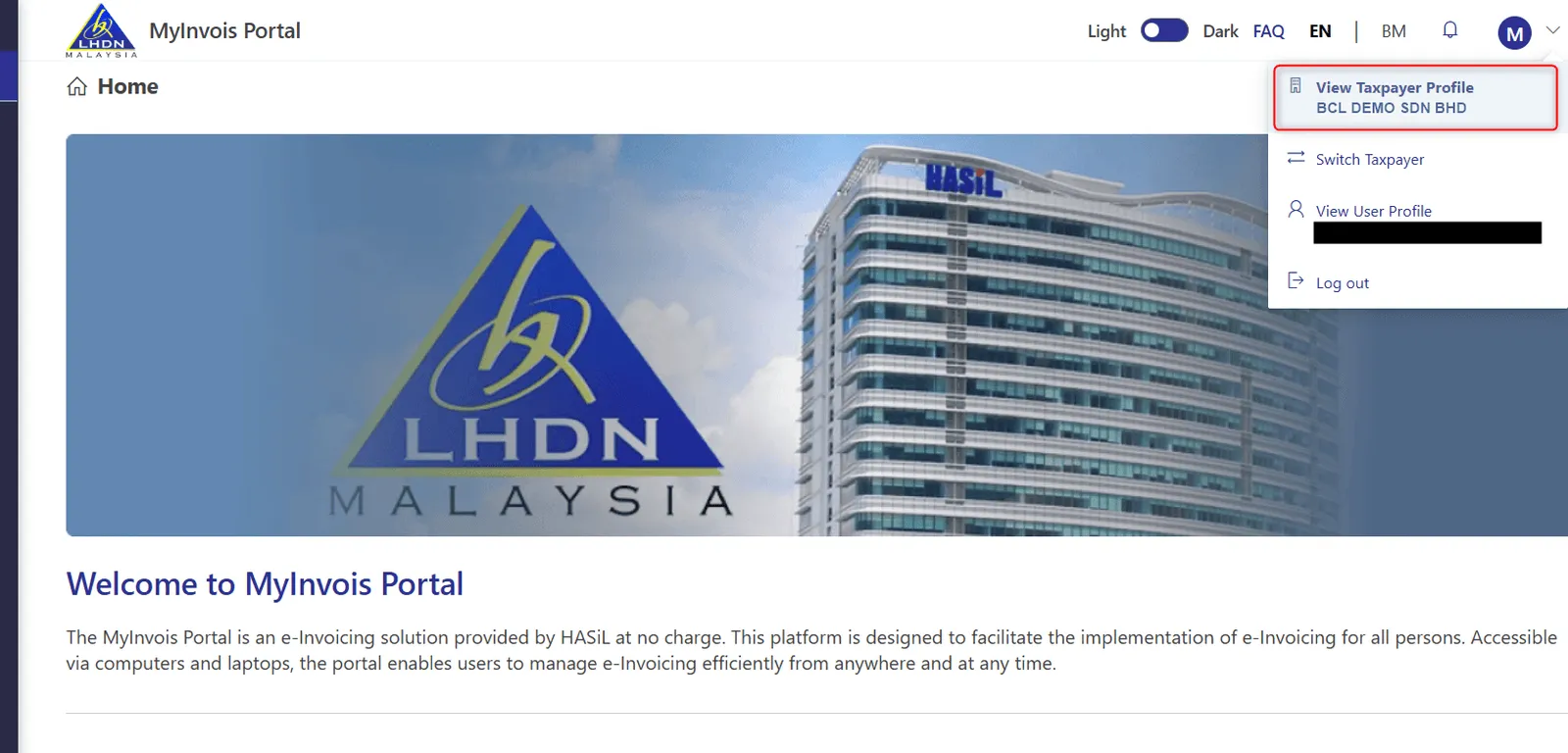
- Scroll to Representatives and click Add Intermediary.
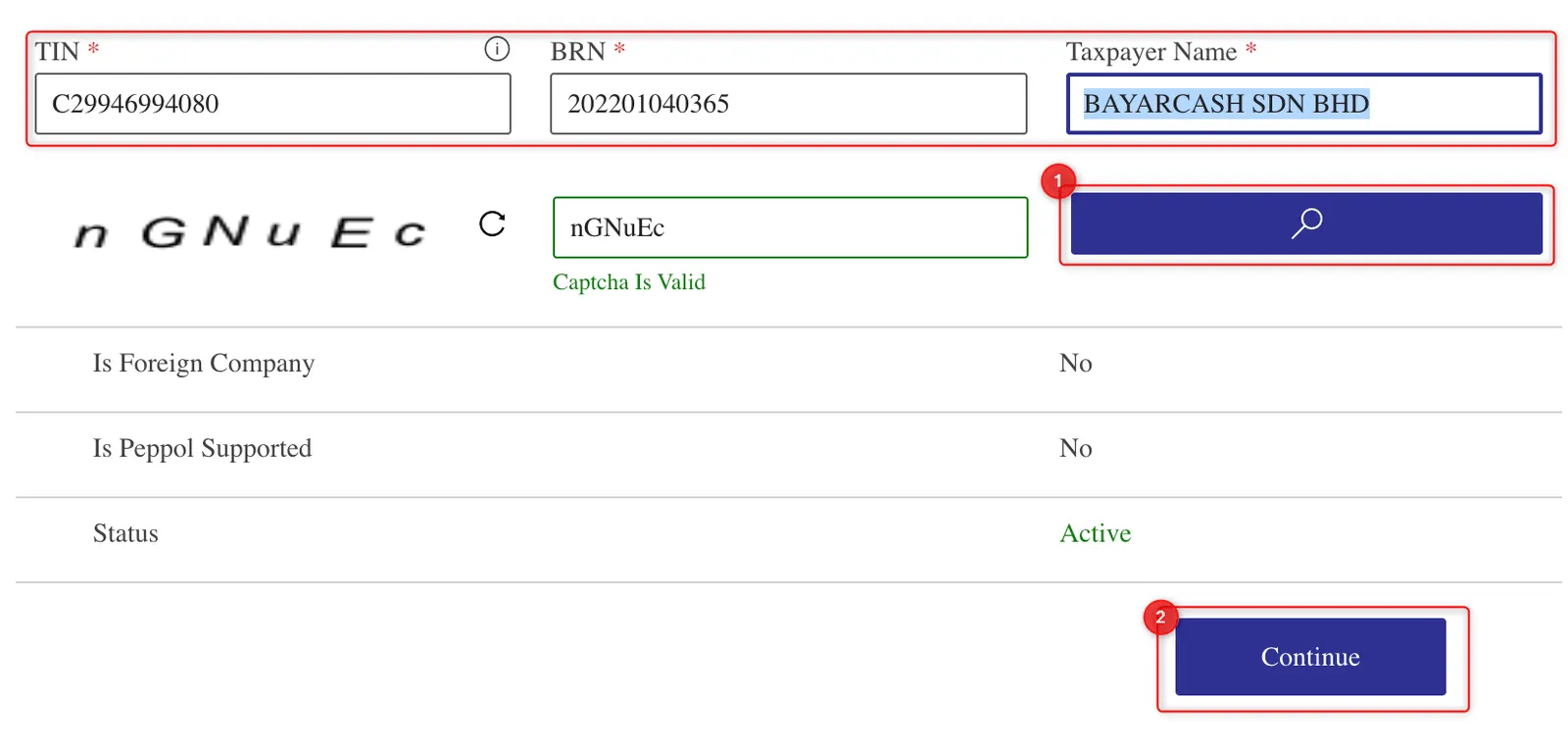
- Enter Bayarcash’s details, then click the search button and Continue:
- TIN: C29946994080
- BRN: 202201040365
- Taxpayer Name: BAYARCASH SDN BHD
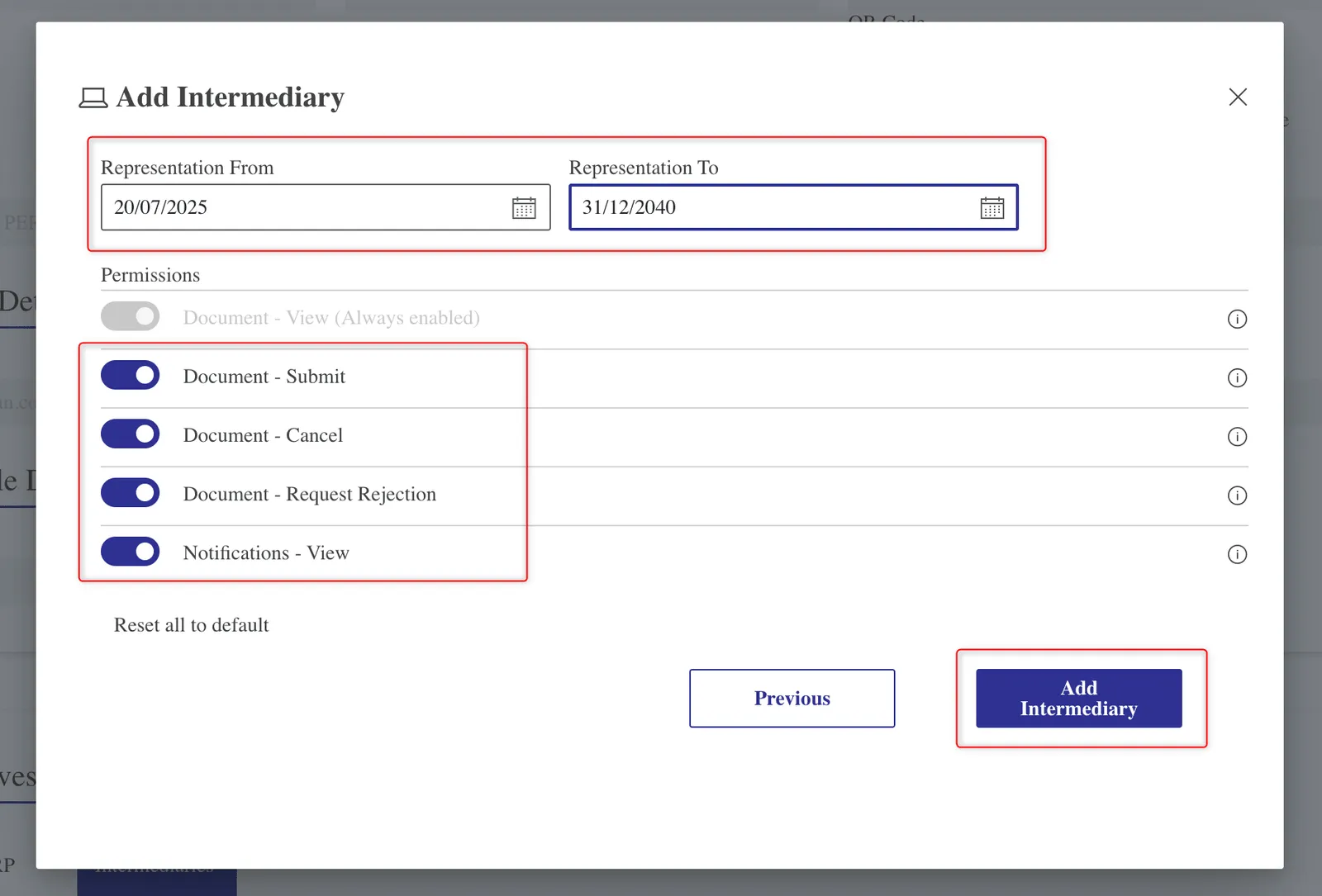
- Set Representation From and Representation To, and turn on the Permissions Bayarcash needs, such as Document - Submit.
- Click Add Intermediary.
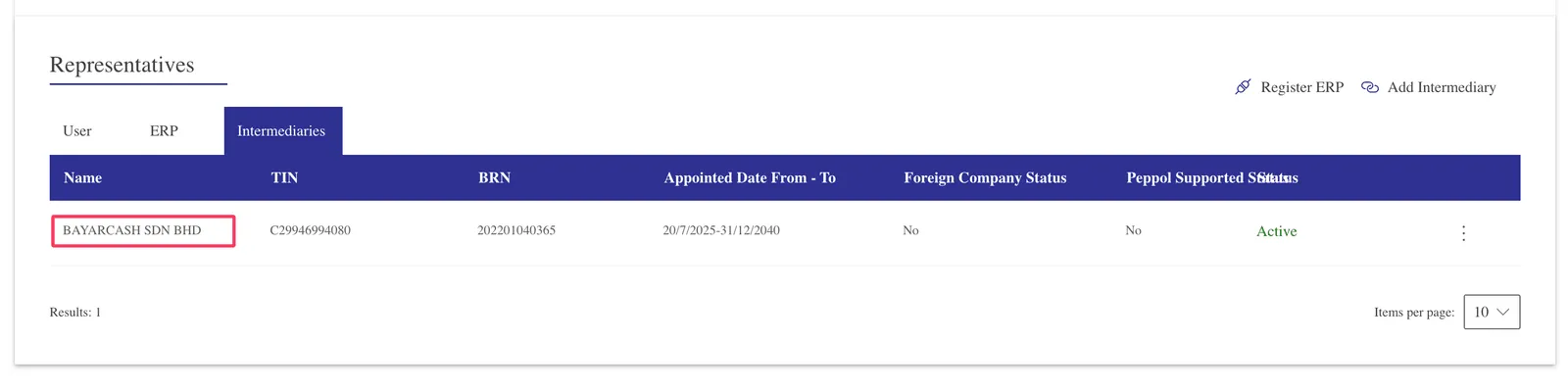
Bayarcash now appears in the Intermediaries tab with the status Active.
Check the connection in BCL
Section titled “Check the connection in BCL”Back in BCL, confirm LHDN accepts Bayarcash:
- Go to Team > Company Profile.
- In the E-Invoice Compliance section, click Check Connection.
- Look for Connection Verified. If you see Authorization Required, recheck the intermediary in MyInvois.
Your e-invoices then show under Payments > MyInvois.
Common issues
Check Connection says Authorization Required. What is wrong?
LHDN has not authorised Bayarcash for your TIN yet. Add Bayarcash as an intermediary in the MyInvois Portal, under the same company as the TIN in Company Profile, then click Recheck Connection.
Check Connection says LHDN did not recognise this TIN.
The TIN format is wrong, so this is not an intermediary problem. A company TIN starts with C and an individual or sole proprietor TIN starts with IG. Correct Tax Identification Number (TIN) in Company Profile.
My TIN starts with IG and my e-invoices keep failing.
Set ID Type in Company Profile to NRIC and enter your IC number, so the TIN and ID refer to the same person.
Was this article helpful?
Thanks for your feedback.
Sorry this didn't help. WhatsApp us and we'll sort it out with you.