
Deliver digital products securely
Protected Content keeps your digital product inside BCL and only opens it for customers who paid. Buyers confirm a one-time code (OTP) before they can view it, so a shared link is no use to anyone else. It avoids emails that never arrive and the risk of your WhatsApp number being banned for bulk sending.
Protected Content is an add-on. Without it, you can still send a download link by email.
Create the protected content
Section titled “Create the protected content”Have your video link, file, text or destination URL ready. Then:
- In the dashboard menu, click Protected Content, then New Content.
- Fill in Title and, if you like, Description.
- On the Content Settings tab, choose a Content Type:
- Video: a YouTube, Vimeo or Facebook link, or an embed code. Good for classes and webinars.
- Text: instructions, a password or a private group link.
- File: ebooks, templates or ZIP files, up to 10 files of 5MB each.
- Redirect URL: sends the buyer to a course or member site elsewhere.
- Under Access Control, choose an Access Type: Immediate Access, Scheduled Access (between set dates) or Duration-based Access (a number of days from purchase).
- Set Maximum Devices (0 means unlimited) and, for files, Maximum Downloads.
- Turn on Show on Receipt so the buyer sees an access button after paying.
- Click Create Protected Content.
Link it to a product
Section titled “Link it to a product”Access is given when someone buys an item that the content is linked to. This works on payment form items (Multiple Items) and event tickets.
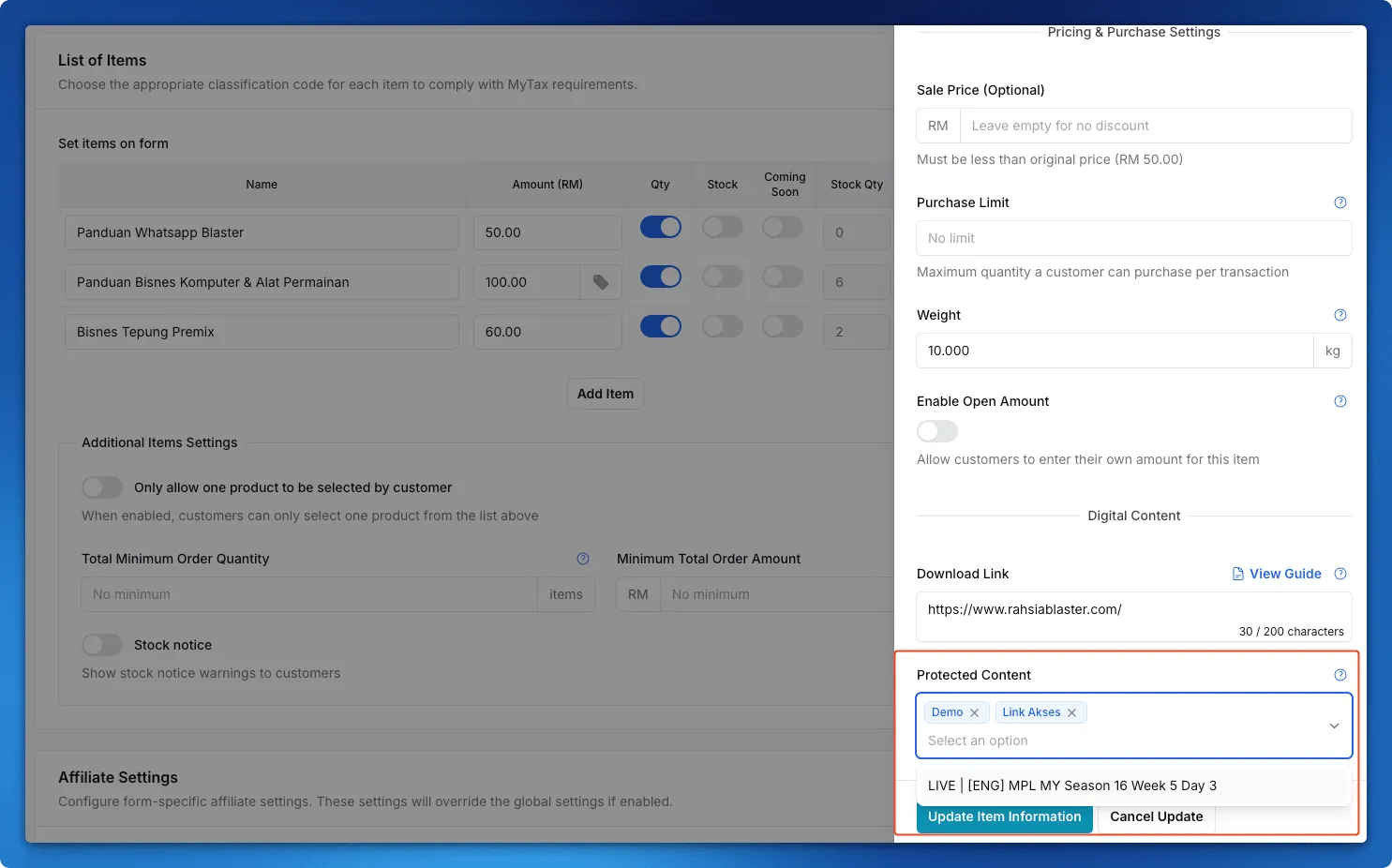
- Open the payment form and click More on the item.
- In Protected Content, pick one or more pieces of content.
- Click Update Item Information, then Update Form.
What the buyer sees
Section titled “What the buyer sees”After paying, the buyer sees a View Protected Content button on the receipt. They choose where to receive the OTP, enter it, and the content opens.
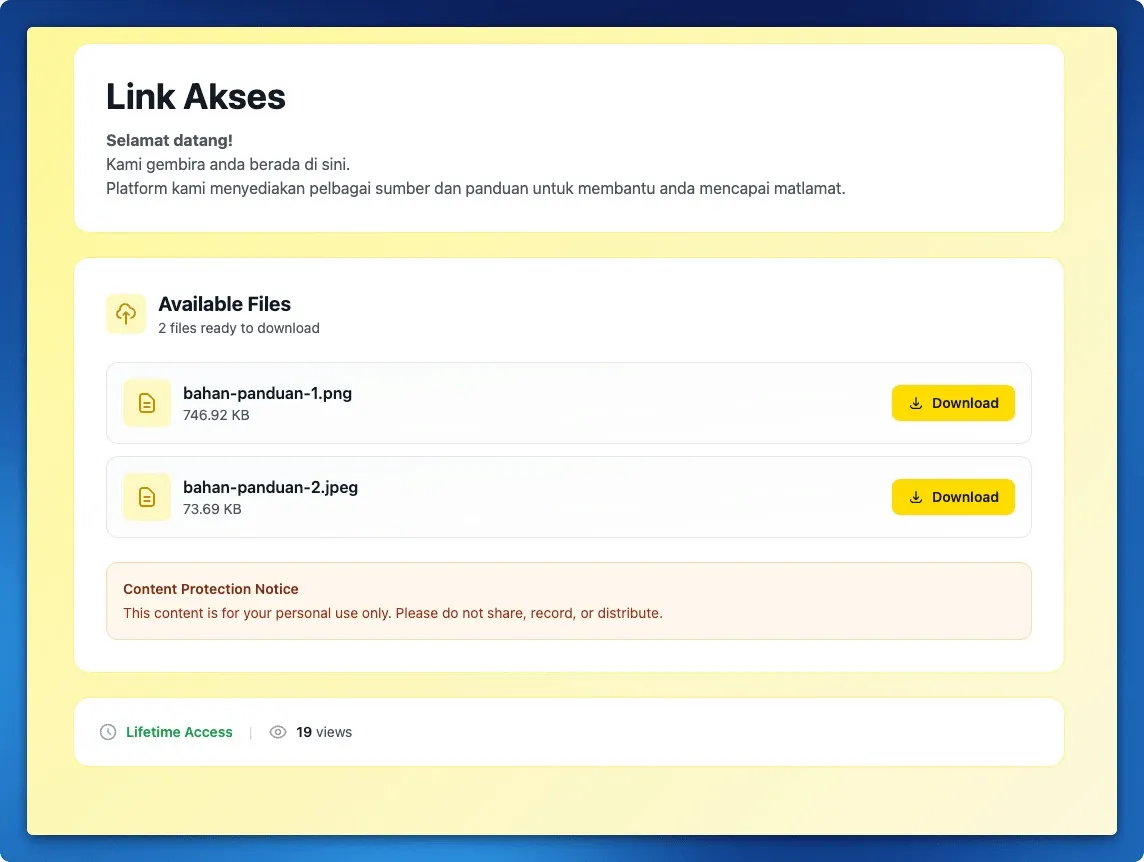
To rename the button, open the form and go to Advanced > Form Display, then fill in Protected Content Button Label.
Common issues
My customer paid but cannot open the content. What should I check?
Open the content in Protected Content and look at Customer Access. If the buyer is not listed, the content was probably not linked to the item they bought. Check the Protected Content field under More on that item.
I linked content to an old product. How do earlier buyers get access?
Access is only created when someone buys. Open the content's Customer Access page and click Grant Buyer Access to give past buyers access in one go.
My customer says the device limit is full, but they only use one phone.
Maximum Devices counts devices at the same time, and a different browser counts as a new device. Free a slot from Customer Access using the Sessions action on that customer.
Was this article helpful?
Thanks for your feedback.
Sorry this didn't help. WhatsApp us and we'll sort it out with you.