
Get Telegram alerts for transactions
The BCL Telegram bot sends you an alert for every transaction in your account, with the customer, form, order number, items and a link to the receipt. Setting it up takes a minute.
Link the bot to your account
Section titled “Link the bot to your account”You need your Merchant ID from BCL before you start.
-
In BCL, go to Team > Team Profile, open the Merchant Information tab and copy the Merchant ID.
-
In Telegram, open the BCL bot at t.me/bclmy_bot and tap START.
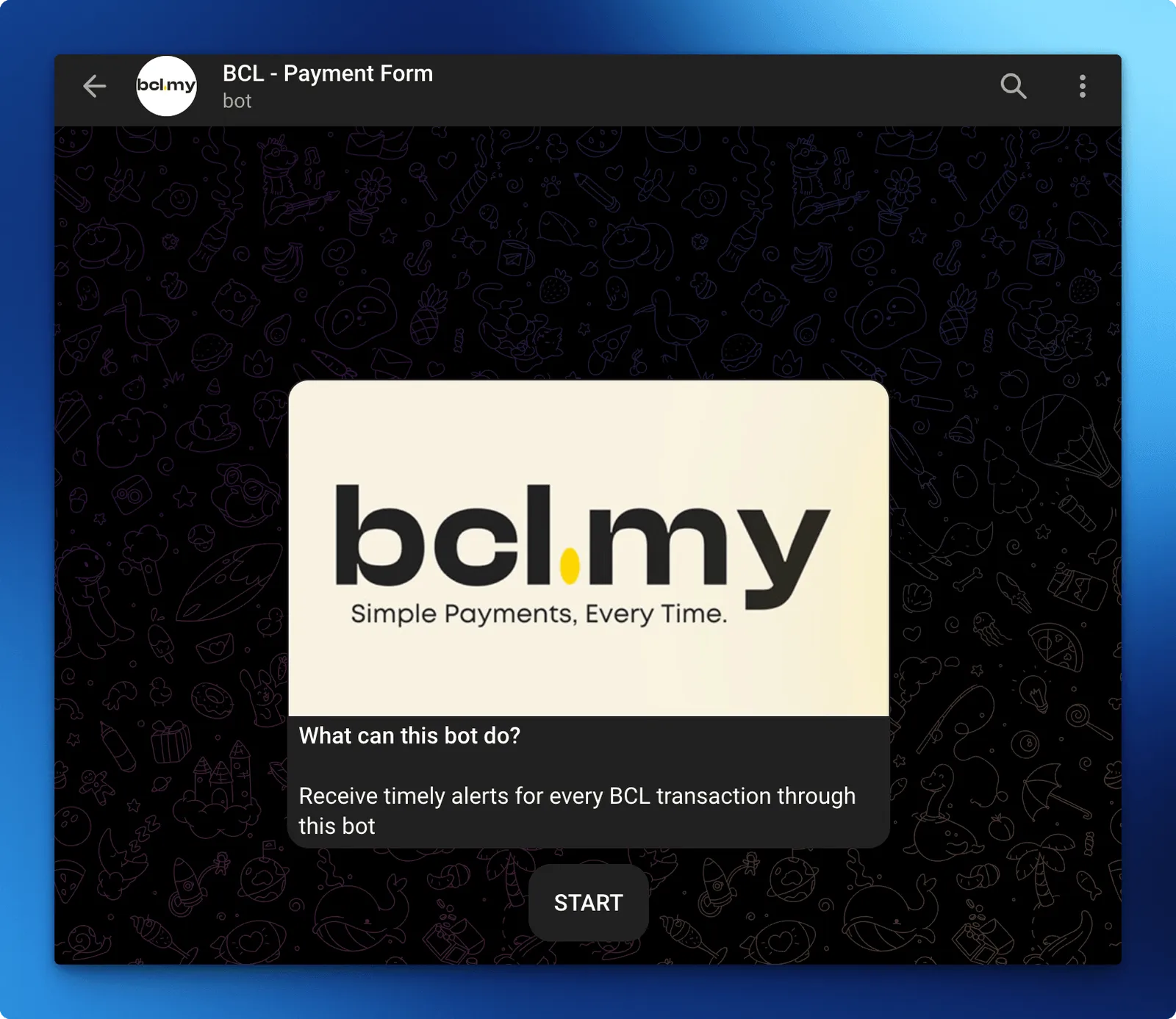
-
Send
/setfollowed by a space and your Merchant ID, for example/set 1a2b3c4d-.... -
The bot replies that your chat is now linked to your team.
From now on, you get a message each time a payment succeeds or fails.
Manage alerts from Telegram
Section titled “Manage alerts from Telegram”The bot understands a few commands, which you send in the same chat:
/viewshows which business the chat is linked to and whether alerts are on./toggleturns alerts off or back on./deleteunlinks the chat from your account./helplists all commands.
Common issues
Where do I find the ID the Telegram bot asks for?
Go to Team > Team Profile, open the Merchant Information tab and copy the Merchant ID. Send it to the bot as /set followed by the ID.
The bot says this chat is already linked to a different team. What now?
Each Telegram chat can follow one BCL account. Send /delete to unlink the old account, or use a different chat for this one.
How do I pause Telegram alerts without unlinking?
Send /toggle to the bot and confirm. Send it again to turn alerts back on.
Was this article helpful?
Thanks for your feedback.
Sorry this didn't help. WhatsApp us and we'll sort it out with you.